 Free Azure DevOps extension
Test summary reports from Azure Test Plans. In one click.
E8 Test Summary Report turns your test plan results into a polished Word and PDF report, with a clear Green, Amber or Red status and a Go or No-Go recommendation. Ready for your stakeholders, your head of quality or your release board.
Release reporting shouldn't take an afternoon. Or the night before go-live.
Every test lead knows the routine: copy the numbers out of Azure Test Plans, rebuild the charts, chase open bugs across tabs, then write a summary under pressure. We are testers too, so we built the report we wanted. Pick a test plan, choose your suites, and download a consistent, professional report in seconds. The numbers come straight from Azure DevOps, so they are always right.
Everything a release decision needs.
One report that answers the questions every stakeholder asks: how much did we test, what passed, what's still broken, and can we ship?
A clear verdict
An automatic Green, Amber or Red status with the reasons behind it, and a Go, Go with conditions or No-Go recommendation. You set the thresholds, and you can always make the final call.
A formal test manager report
Purpose and approach, scope, areas and features tested, results by suite, requirements coverage, deviations, risks and sign-off. Use a preset or pick exactly the sections you need.
Every relevant defect
Bugs linked to your tests, to the user stories they cover or raised during test runs, plus bugs found by tag, area or iteration path, or a saved query. Each bug listed once.
Clickable bug links
Every defect ID in the Word and PDF report opens the bug straight in Azure DevOps, so readers go from the report to the detail in one click.
Exit criteria, checked for you
Pass rate, execution and open defect limits are each marked Met or Not met automatically. Add your own criteria alongside them.
"Make it professional"
Turn rough notes into a polished executive summary with Claude, ChatGPT or your organisation's Azure OpenAI. You review every word before it reaches the report.
From test plan to signed-off report in three steps.
It lives inside Azure DevOps under Test Plans. There is nothing to host and nothing to set up.
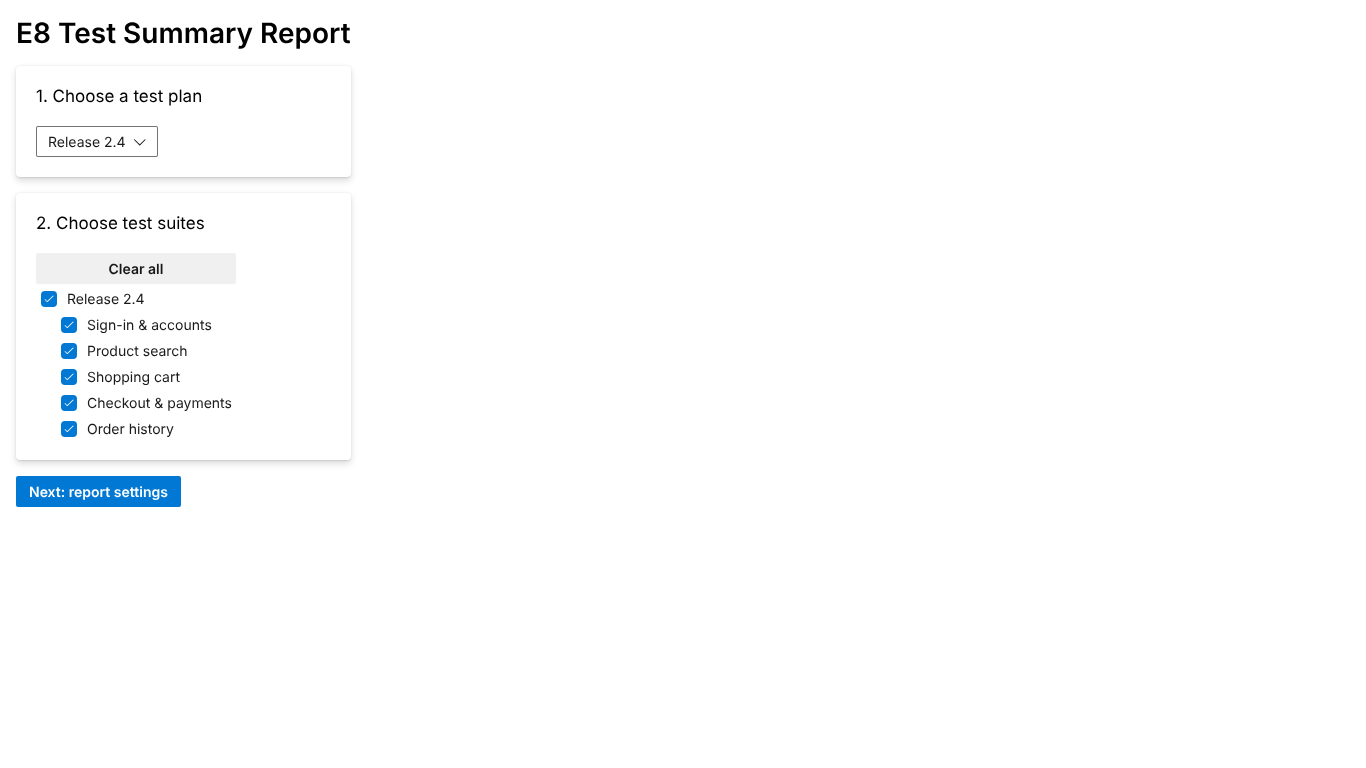
Choose your scope
Open Test Plans > Test Summary, pick a test plan and tick the suites to report on.
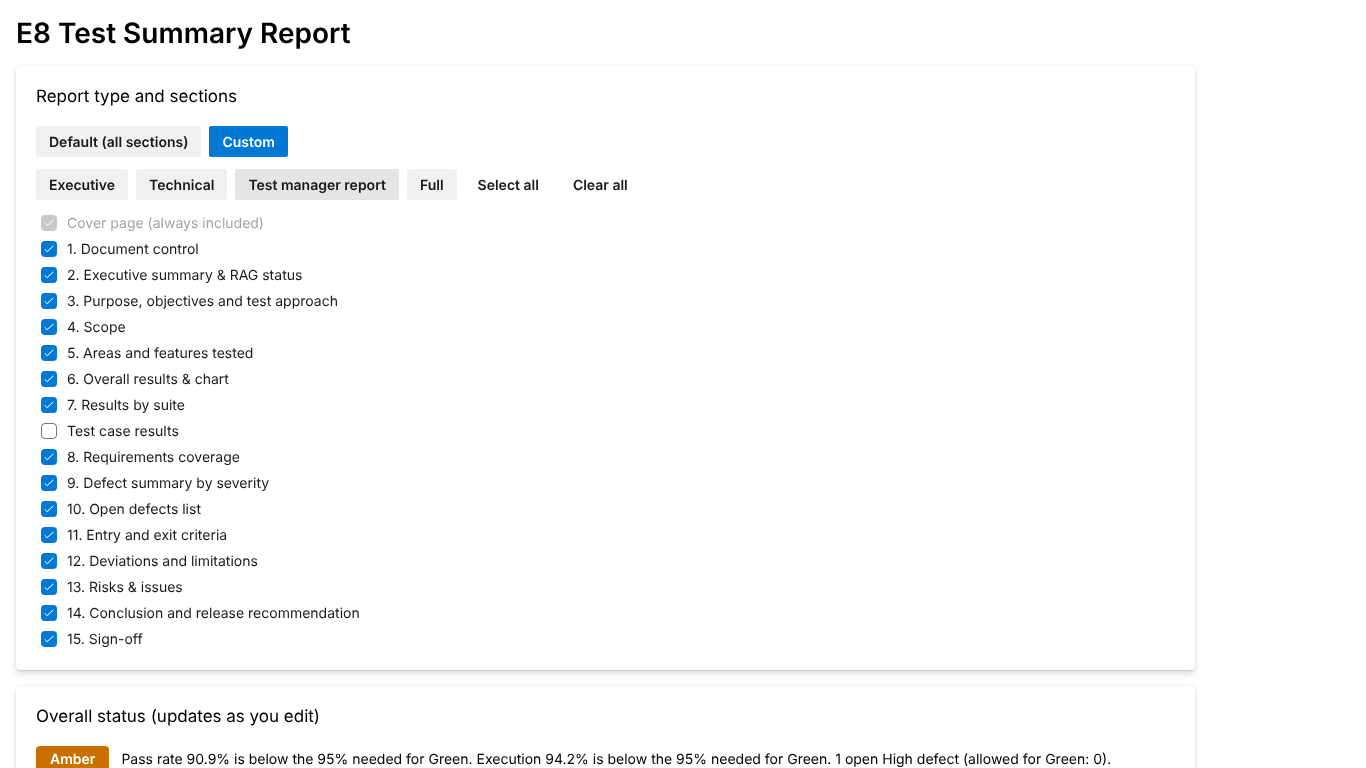
Set up the report
Choose a preset or your own sections and add your notes. The status updates as you type, and your settings are remembered.
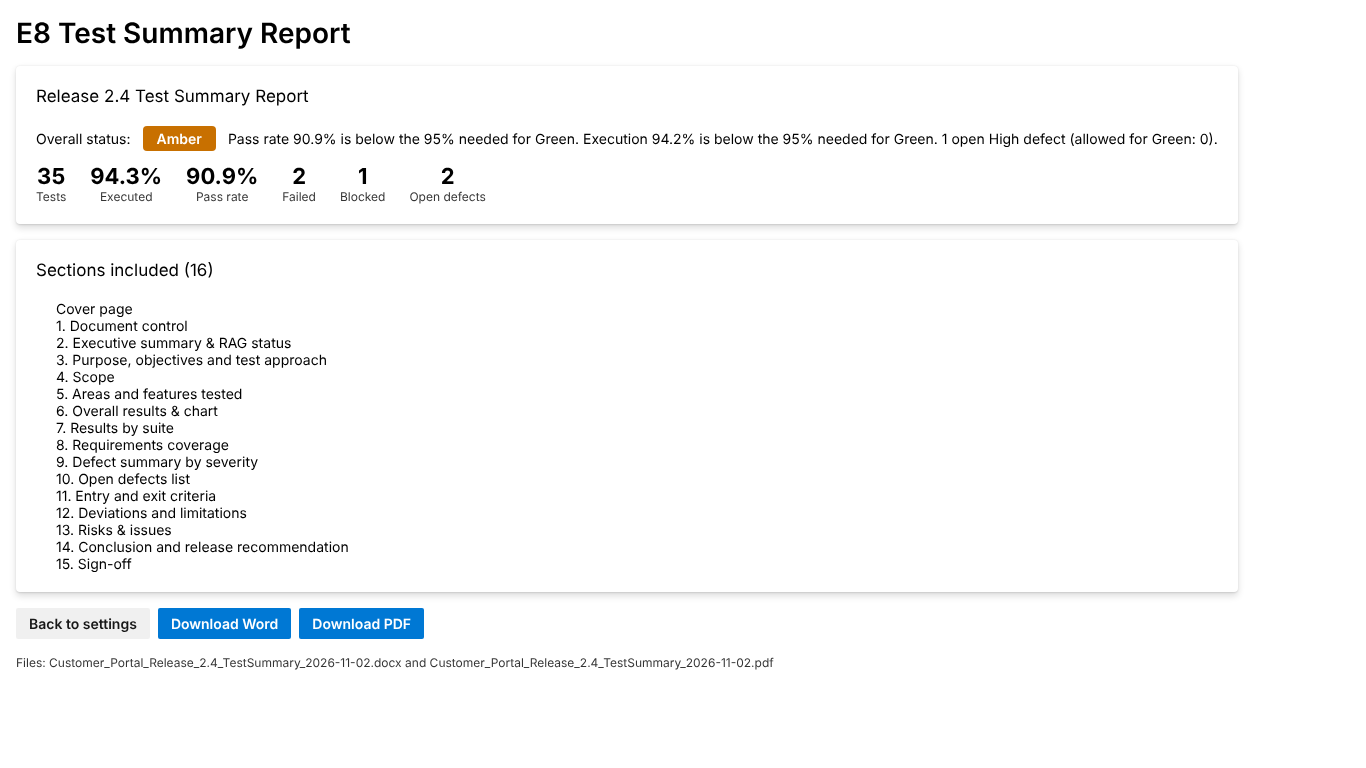
Preview and download
Check the sections and the status, then download Word or PDF. Both files always contain the same numbers.
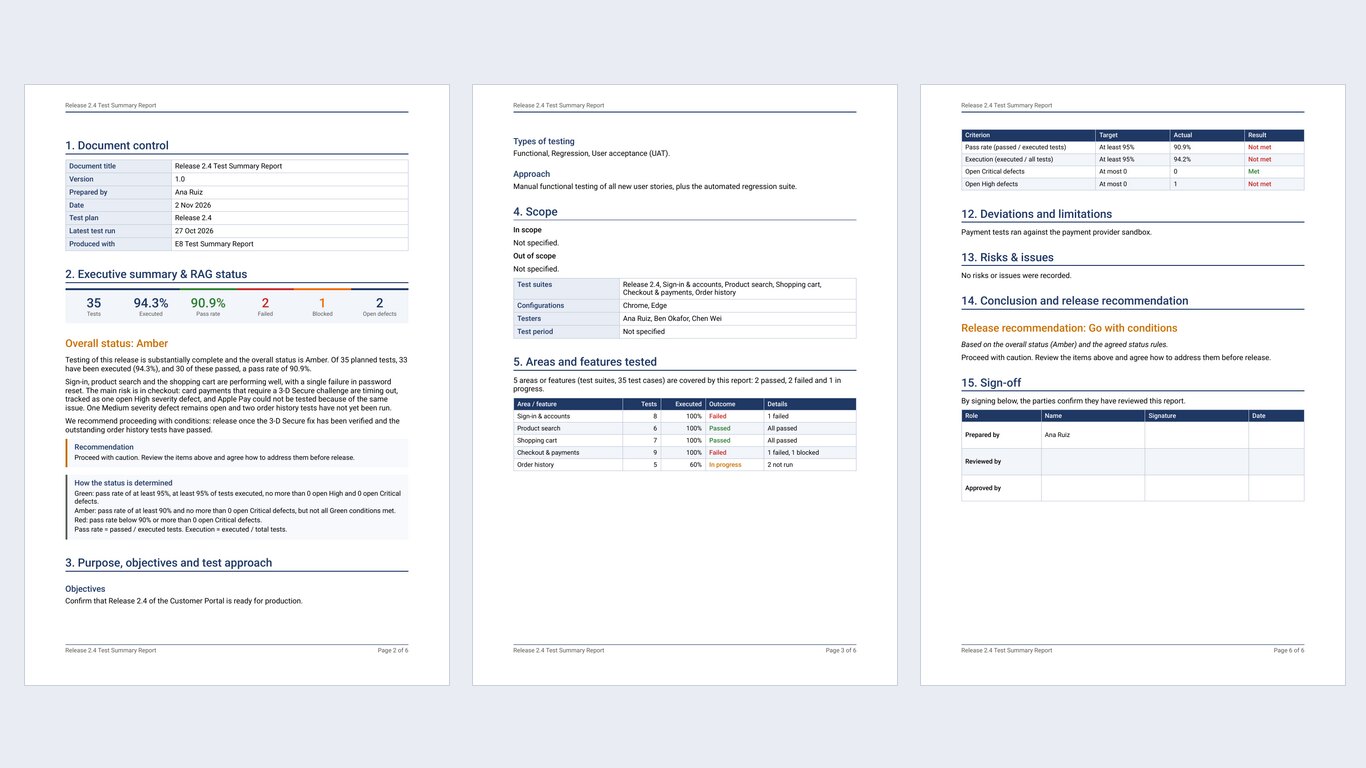
The report your release board expects.
Every report follows the same structure, so readers always know where to look. The status uses three levels:
- Cover and document controlTitle, project, environment, test period, version
- Executive summary and statusKey figures, the status and why
- Purpose, objectives and approachWhat you set out to prove and how
- ScopeIn and out of scope, suites, configurations, testers
- Areas and features testedOne clear outcome per feature
- Results by suiteCharts, pass rate and execution rate
- Test case resultsEvery test case and its latest status
- Requirements coverageUser stories and how well they are covered
- DefectsBy severity, with clickable links
- Entry and exit criteriaChecked automatically as Met or Not met
- Deviations, risks and issuesWhat stakeholders should know
- Conclusion and sign-offGo / No-Go with rationale, then signatures
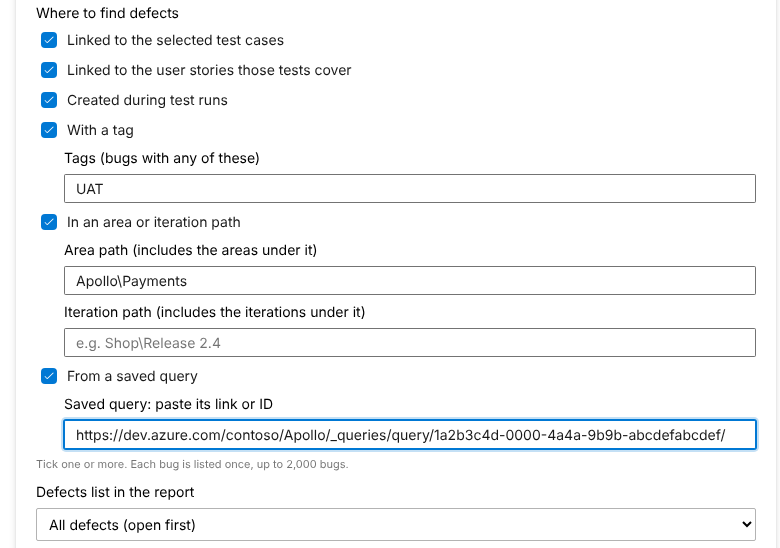
Your defects, wherever your team logs them.
- Linked to your test cases, the default.
- Linked to the user stories those tests cover.
- Created during test runs, from each test's latest result.
- By tag, area or iteration path, or from a saved query.
- Combine as many as you like. Each bug is listed once, and the report says where its defects came from.
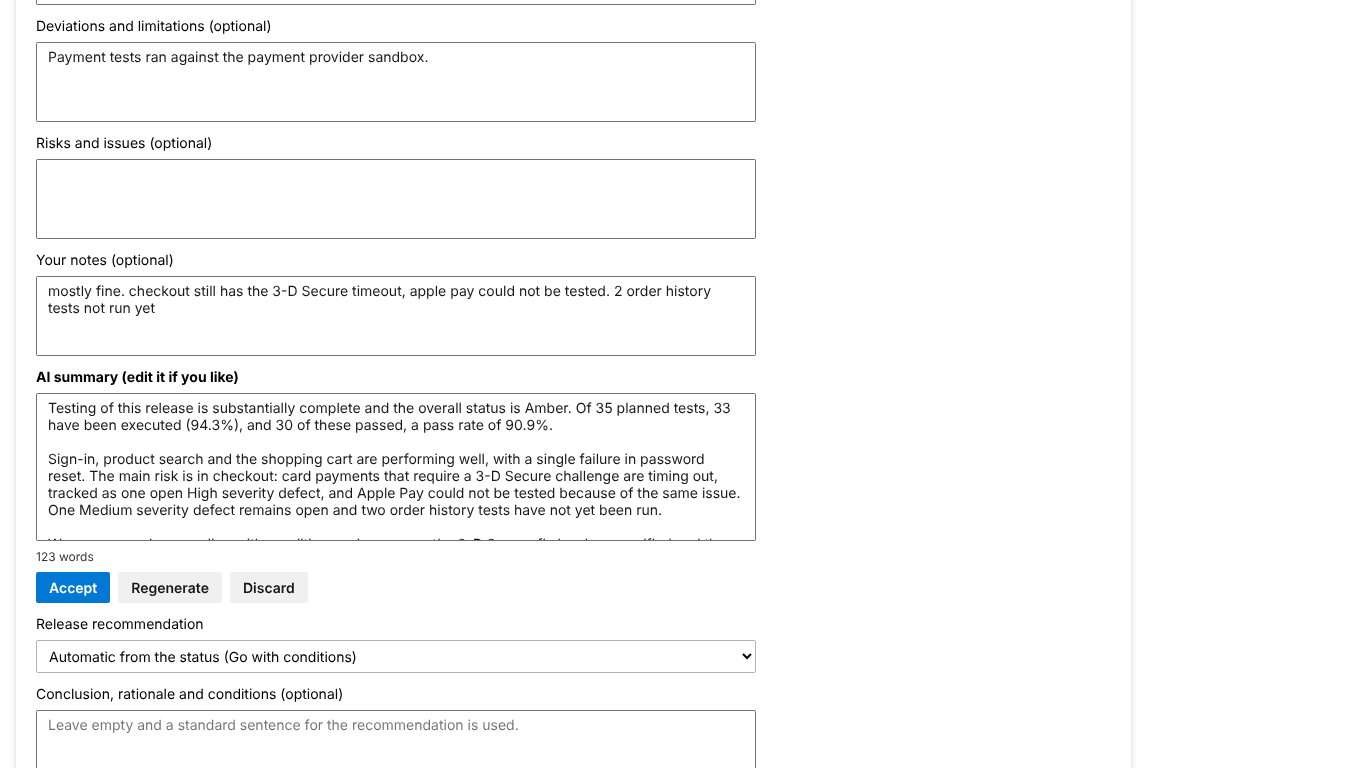
Rough notes in. Executive summary out.
Write a few notes and click Make it professional. The AI turns them into a clear summary in an Executive or Technical tone, using only your notes and your real numbers. Nothing reaches the report until you click Accept.
Use the AI service you already trust
- Your key, your account. It is called directly from your browser. Nothing goes through E8.
- Only notes and totals are sent. Never test case names, steps or defect details.
- You agree first. A one-time notice names the service and the exact address before anything is sent.
Your test data never leaves your organisation.
The extension runs entirely in your browser, inside Azure DevOps. We designed it so there is nothing for us to receive.
Frequently asked.
Azure DevOps Services (dev.azure.com) with Azure Test Plans
Test management (read) and Work items (read)
Free. Optional AI uses your own key, a fraction of a cent per summary
Yes. Every feature is available to everyone, with no trial, no watermark and no sign-up with us. If you use the optional AI summary, your AI provider charges your own account for it, usually a fraction of a cent per summary.
No. The report is built in your browser and downloaded to your computer. Your report settings are saved in your own Azure DevOps organisation, for your user only. See the privacy policy.
Claude (Anthropic), ChatGPT (OpenAI) with the model of your choice, or your organisation's Azure OpenAI deployment. You use your own key, which stays in your browser and is never saved in Azure DevOps. The AI is optional: leave your notes empty and a plain summary is written from the numbers.
Not directly, because Copilot has no general API key for apps like this one. If your organisation uses Azure OpenAI, choose that option instead: it runs OpenAI's GPT models in your organisation's own Azure subscription.
It is built and tested for Azure DevOps Services (dev.azure.com). If you need on-premises support, tell us.
By default, the bugs linked to the test cases you report on. You can add bugs linked to the user stories those tests cover, bugs created during test runs, and bugs found by tag, area or iteration path, or a saved query. The report lists each bug once and says where they came from.
Try it on your next release. Install E8 Test Summary Report free from the Visual Studio Marketplace. Questions or ideas? Email quality@e8tech.co.
Install freeNeed help with testing itself? E8 Tech Consulting also delivers software testing on your cadence. See our services.